
Cisco Packet Tracer 9.0 supports a new device called Cyber Observers.
Overview
Cyber Observer devices offer a graphical user interface (GUI) for managing, monitoring, and configuring supported network devices, as well as simulating network threats and their mitigations.
Basic Configuration
At a basic level, users can configure the Global and Interface Settings of a Cyber Observer, similar to a regular PC.
Connecting It
Users are encouraged to investigate various Cyber Observer features by exploring this and other related sample files included with their Cisco Packet Tracer application installation. Key features and interactions with the Cyber Observer are documented in more detail below.
Configuration and Management Using Web Interface

Initial Configuration
Upon initial access to the Cyber Observer web interface, users will be prompted to complete an initial setup by creating an account, as shown below.

Use Username, Password, Confirm Password to enter usersr account attributes and click SETUP to create the new account.
Most Cyber Observer network samples shipped with PT use 'admin' as the username and 'cisco' as the password for the main administrator account.
Dashboard and Basic Navigation
After logging in, users will see a dashboard that displays all detected network vulnerabilities and network issues.

Clicking on the Dashboard Menu button

Opens a menu that allows users to access various management and monitoring functions within Cyber Observer.

Likewise, clicking on the User name, admin in the case, below
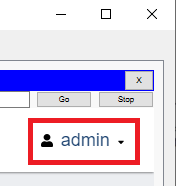
Opens a menu where Cyber Observer administrators can perform User Management and Logout.

Provisioning
In this section, users can add devices to Cyber Observer, discover new devices on the network, create global credentials for accessing these devices, and define network vulnerabilities. To access these features, users should select Provisioning from the main menu on the dashboard, as shown below.

Discovery
In order to see status for existing device discovery processes, select Discovery on the navigation bar.

You can create a new discovery process by clicking on  button. In the UI panel that opens, users will be able to configure a new discovery process.
PT Cyber Observer will automatically initiate a new device detection(new_device_detection) process after the first discovery is created by users. This process identifies any new devices added to the network, marks them as rogue devices, and posts the issue on the dashboard, as described in the previous section. New devices are detected by pinging connected devices and their adjacent devices. For this mechanism to function properly, users must ensure that every device in the network—including switches—has a configured IP address and is reachable via ping from Cyber Observer.
Vulnerability Database
This feature allows users to create, edit, and delete custom CVE items. Devices in the network that match the specified CVE device model and firmware will appear under Network Vulnerabilities on the dashboard. Once users upgrade the firmware on the affected devices, the associated vulnerability will be automatically removed from the dashboard.


Assurance
In this section users can view network topology.

To view information about a specific device, users can click on the device icon. This action opens the device information panel on the right side of the graphical topology view. For example, the information shown above is for a device named "Enterprise Router."
Note:
Users must ensure that every device in the network, including switches, has a configured IP address and is reachable via ping from the entire network. Otherwise, the topology collected by Cyber Observer may appear incomplete or fragmented.
Examples
| Sample File | Description |
|---|---|
CyberObserver.pkt |
This file demonstrates how to use the Discovery feature in Cyber Observer to identify devices on the network. |
CyberObserver_Threat_Mitigation.pkt |
This file demonstrates how Cyber Observer can be configured to handle threats and mitigation. |
CyberObserver_UpgradeFirmware.pkt |
This file demonstrates how to use PTIAA to upload new firmware to PLCs. |
Current Modeling Limitations
Please note that in topologies with a large number of devices, Cyber Observer may take several seconds to update its information.